Start with bone, round, shield, or heart shapes and preview the sheet before exporting.
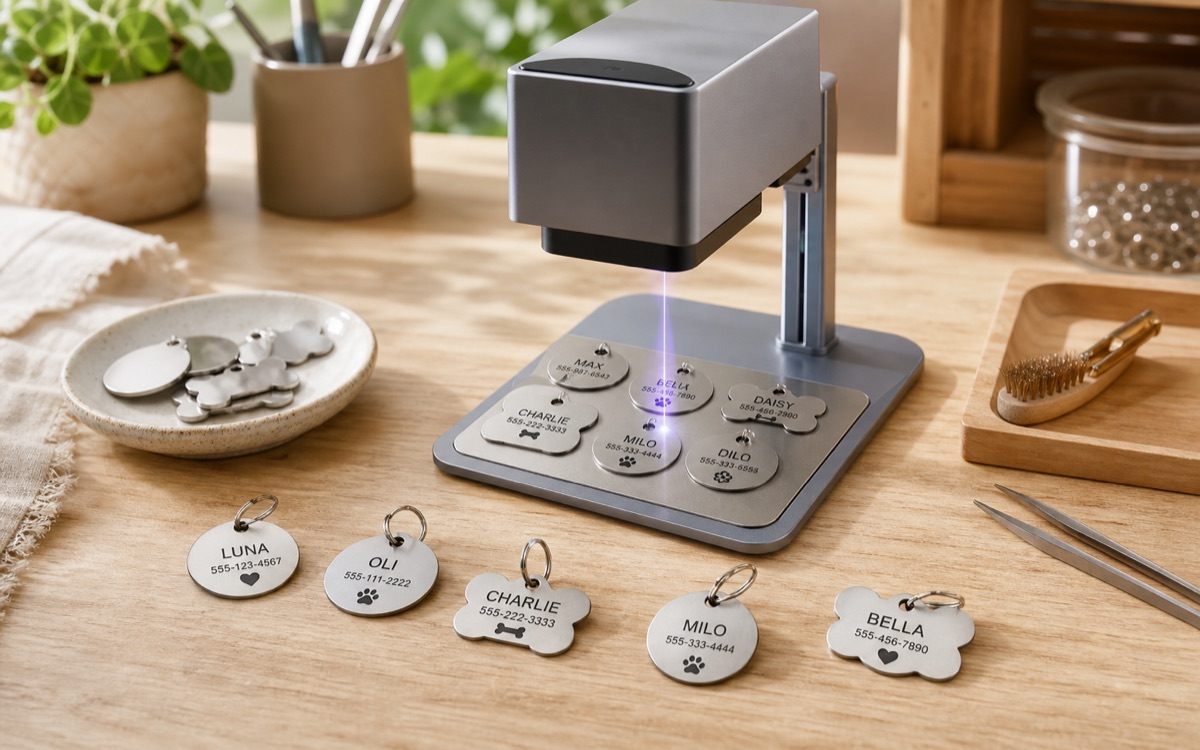
Pet product seller tool
Make a full pet tag batch sheet from name and phone rows
Pick a tag shape, paste pet names and phone numbers, export SVG, then import the file into LightBurn, xTool Studio, EZCAD, diode, CO2, or compact galvo workflows.
Need prepared seller files? View the starter pack.
Paste pet rows
Export SVG
Red=cut
Black=mark
Beginner workflow
Built for repeat personalized orders
Use one row per tag with pet name and phone number, or import a CSV/TXT order list.
Import the SVG, confirm scale and hole placement, then mark one blank tag before the full batch.
Commercial use path
Use the free tool for custom orders, use the pack for starter layouts
The free generator helps you create one customer batch. The starter pack adds batch SVG sheets, sample CSV, settings notes, and commercial-use terms for finished physical pet tags.
Best for
Pet shops, Etsy tags, craft fairs, local gift orders
Output
Batch SVG sheet with outline and marking text
Software
LightBurn, xTool Studio, EZCAD-friendly imports
Proof needed
One blank tag test for contrast and readability
Need more shapes?
Ask for a pet tag layout pack or custom batch style
Use the contact page if you need a specific blank size, shape family, logo area, QR option, or machine workflow.
Contact for a pack
Want to inspect the file first? Download sample SVG.

FAQ
Before you export a pet tag sheet
What file does the generator export?
It exports an SVG sheet with tag outlines and marking text. Import the SVG into your laser software and confirm scale before production.
Can I use the free generator for customer orders?
Yes, but you should test one blank tag first. The paid pack is for sellers who want more prepared layouts and starter settings.
What do red and black mean?
Red strokes are intended as cut or outline paths. Black artwork is intended for marking or engraving.